What You Need
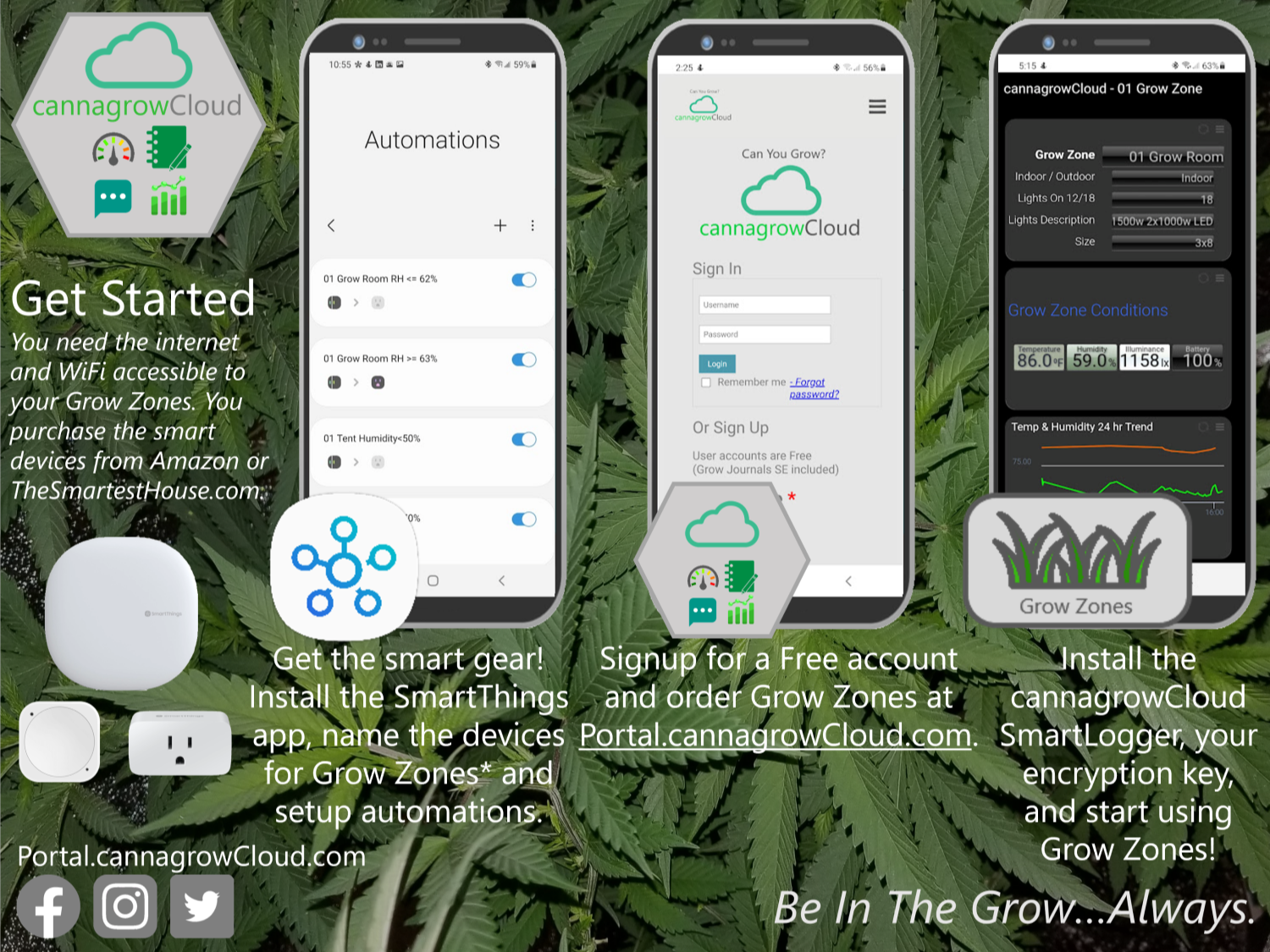
You need the internet and WiFi accessible to your Grow Zones. You purchase the SmartThings devices from Amazon or TheSmartestHouse.com or other retailers.
• You purchase and install the “smart stuff”
• Signup for a free Samsung Account
• Install the SmartThings app
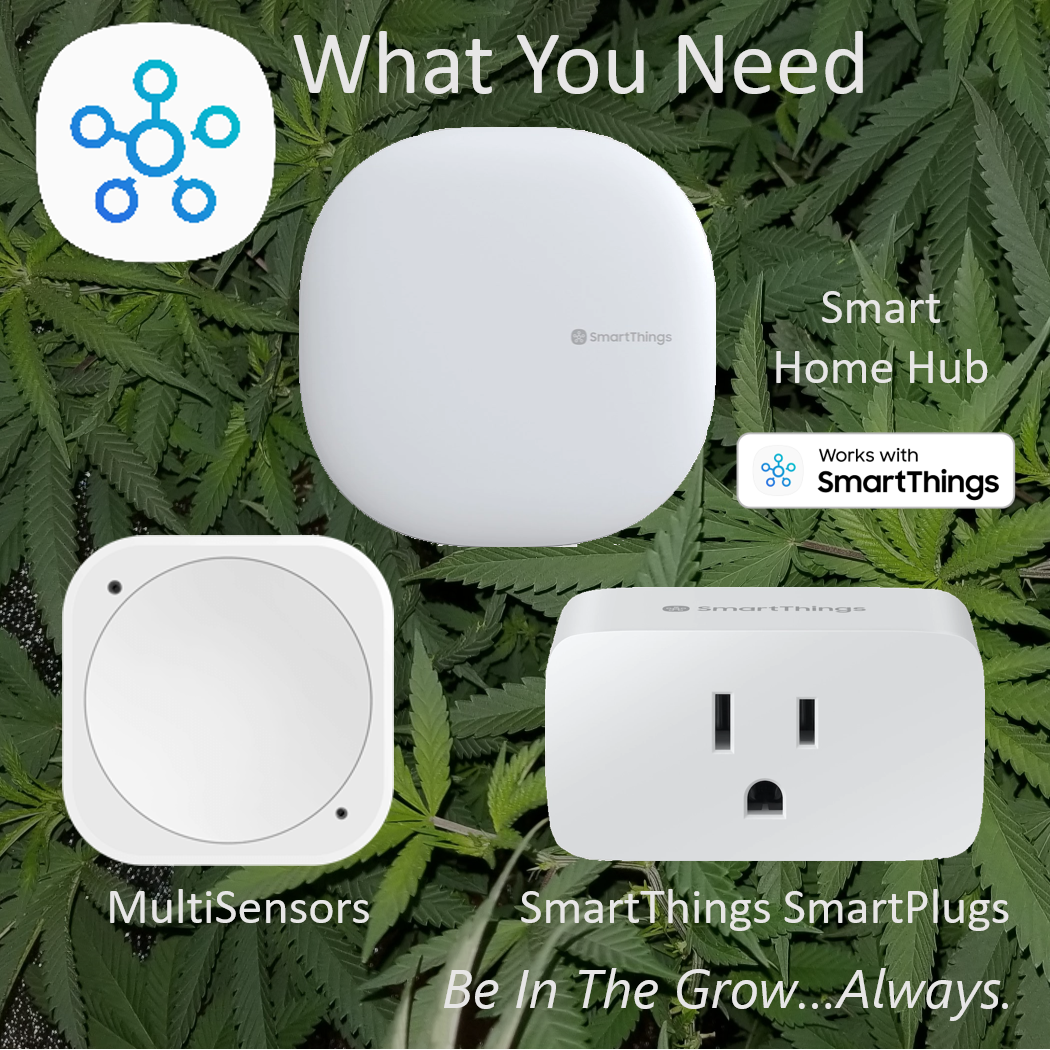
Purchase these items:
• 1 SmartThings Smart Home Hub
• 1 Multisensor for each Grow Zone
• 1 to 8 SmartPlugs for each Grow Zone
Multisensors:
Aeotec MultiSensor 6
Zooz 4-in-1 Multisensor ZSE40
SmartPlugs:
Zooz Power Switch Z-Wave Heavy Duty Plug
Zooz Smart Plug ZEN06
Aeotec Smart Switch 7
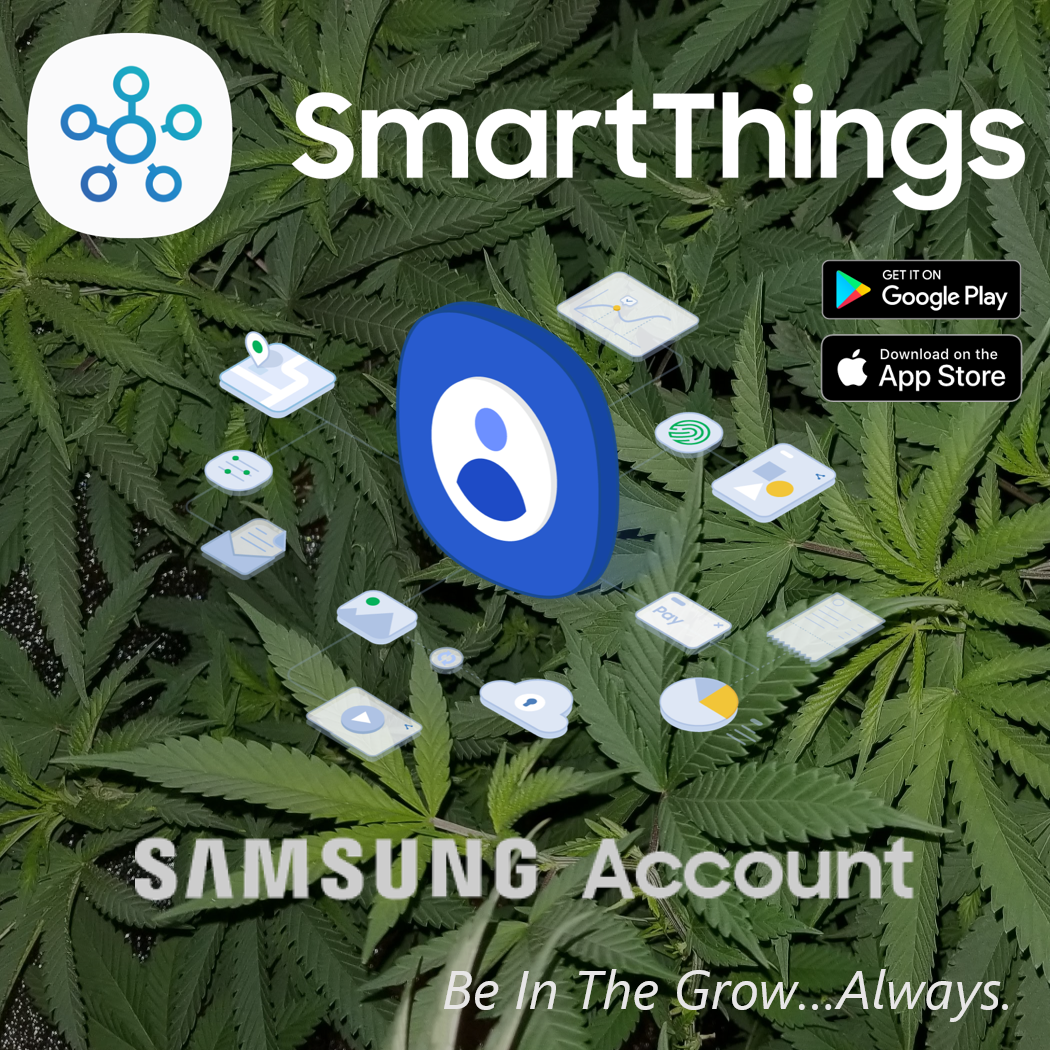
Signup for Samsung Account
Sign up for a free Samsung Account. This is required to use SmartThings and the cannagrowCloud Logger SmartApp.
Sign up for your account here:
Samsung Account
Install the Samsung SmartThings app on your phone or tablet (or both!). The SmartThings app is available for Android devices on the Google Play store and Apple devices on the App Store.
SmartThings - Google Play Store
SmartThings - Apple App Store
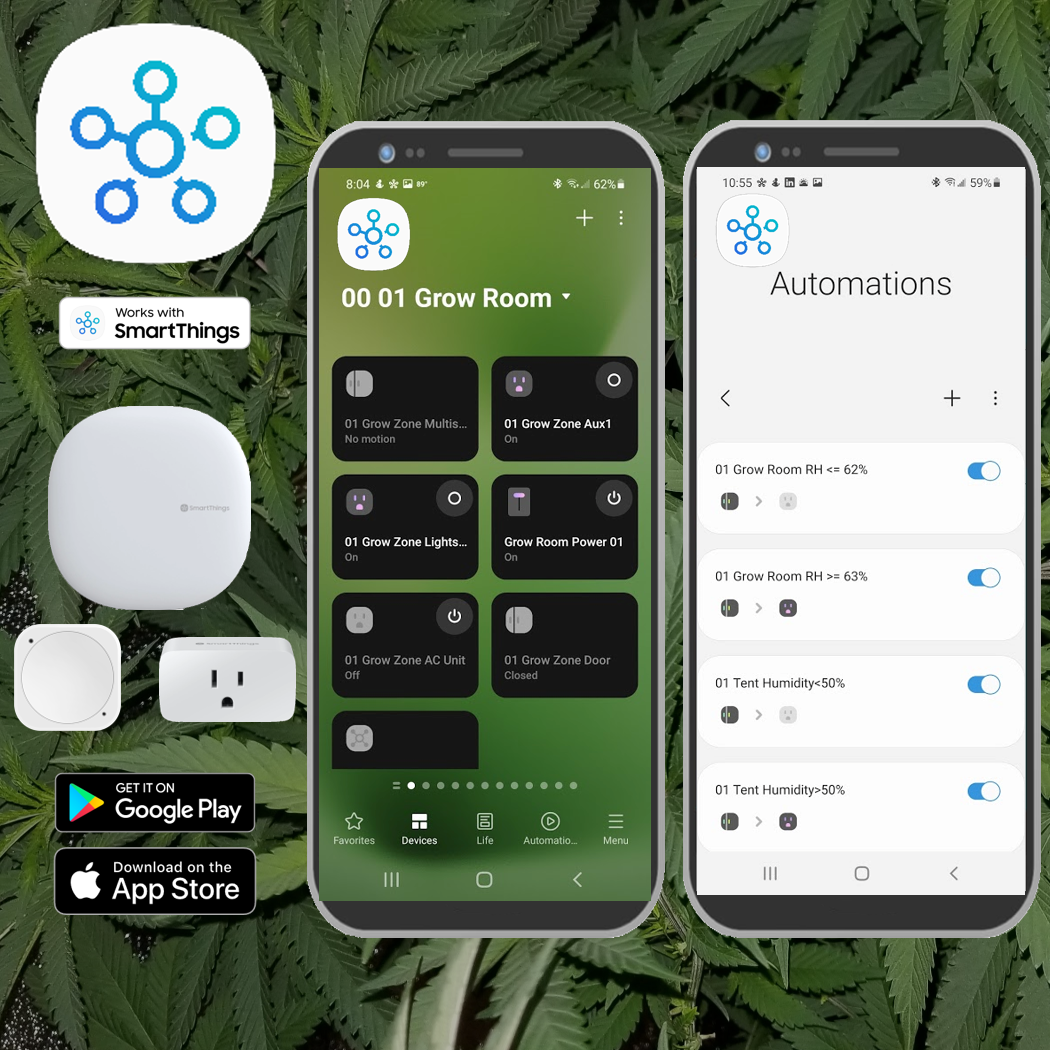
Install the Smart Stuff
Install and setup the SmartHub, the SmartPlugs, and the Multisensor(s).
The instructions to install your devices can be found below.
Naming Your Devices – Your devices MUST be named exactly according to the following to enable data logging to cannagrowCloud. Please use the following device names when installing your multisensors and smartplugs.
01 Grow Zone
01 Grow Zone Multisensor
01 Grow Zone Lights A
01 Grow Zone Lights B
01 Grow Zone Aux1
01 Grow Zone Aux2
01 Grow Zone AC Unit
01 Grow Zone Air Heat
01 Grow Zone Humidity Control
01 Grow Zone CO2 Control
02 Grow Zone
02 Grow Zone Multisensor
02 Grow Zone Lights A
02 Grow Zone Lights B
02 Grow Zone Aux1
02 Grow Zone Aux2
02 Grow Zone AC Unit
02 Grow Zone Air Heat
02 Grow Zone Humidity Control
02 Grow Zone CO2 Control
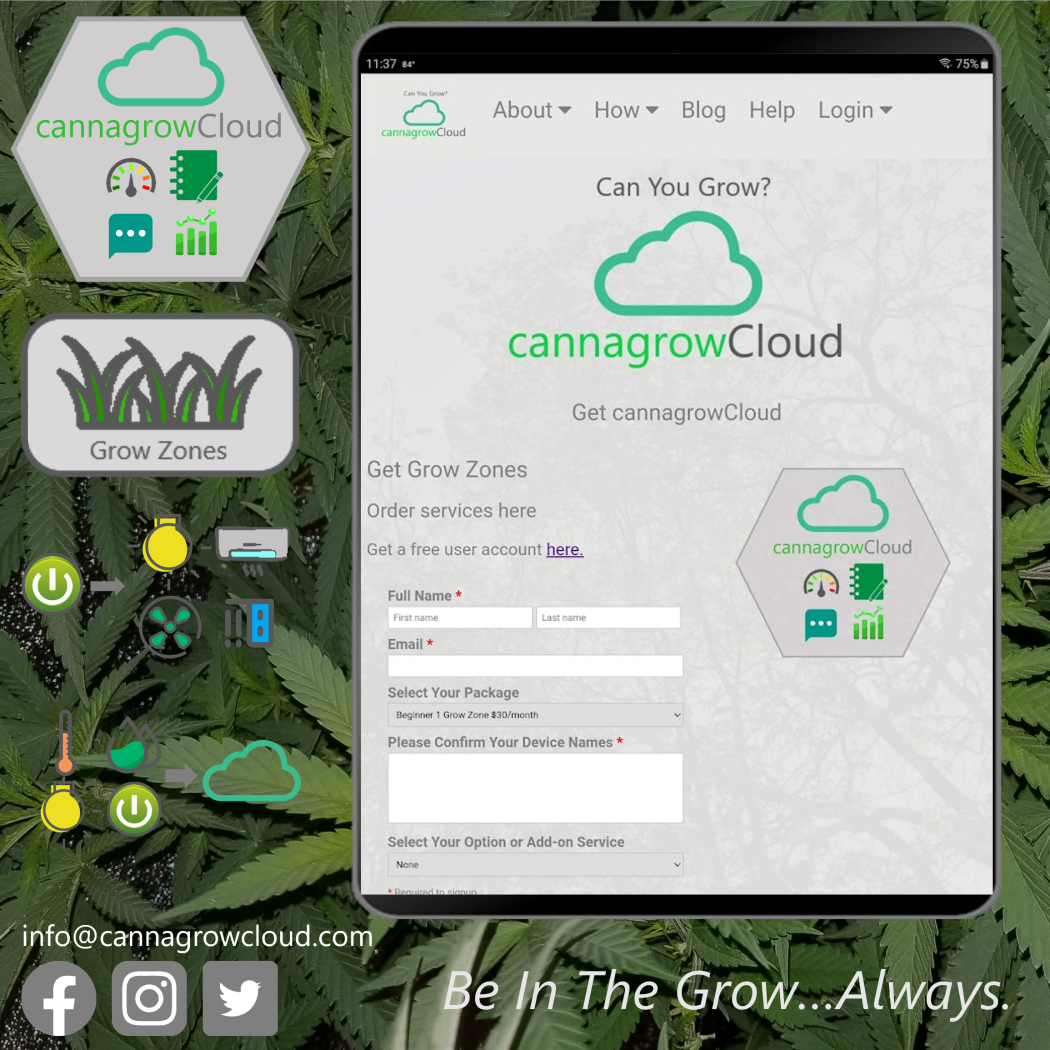
Signup for Grow Zones
• Tell us about your Grow Zones: Beginner (1 zone), Standard (2 zones), Caregiver (4 zones)
• Confirm your device names by listing the names of the devices you have installed
• Options and Add-ons (Premium, Bluelab Connect)
Have a question? Contact us at info@cannagrowcloud.com
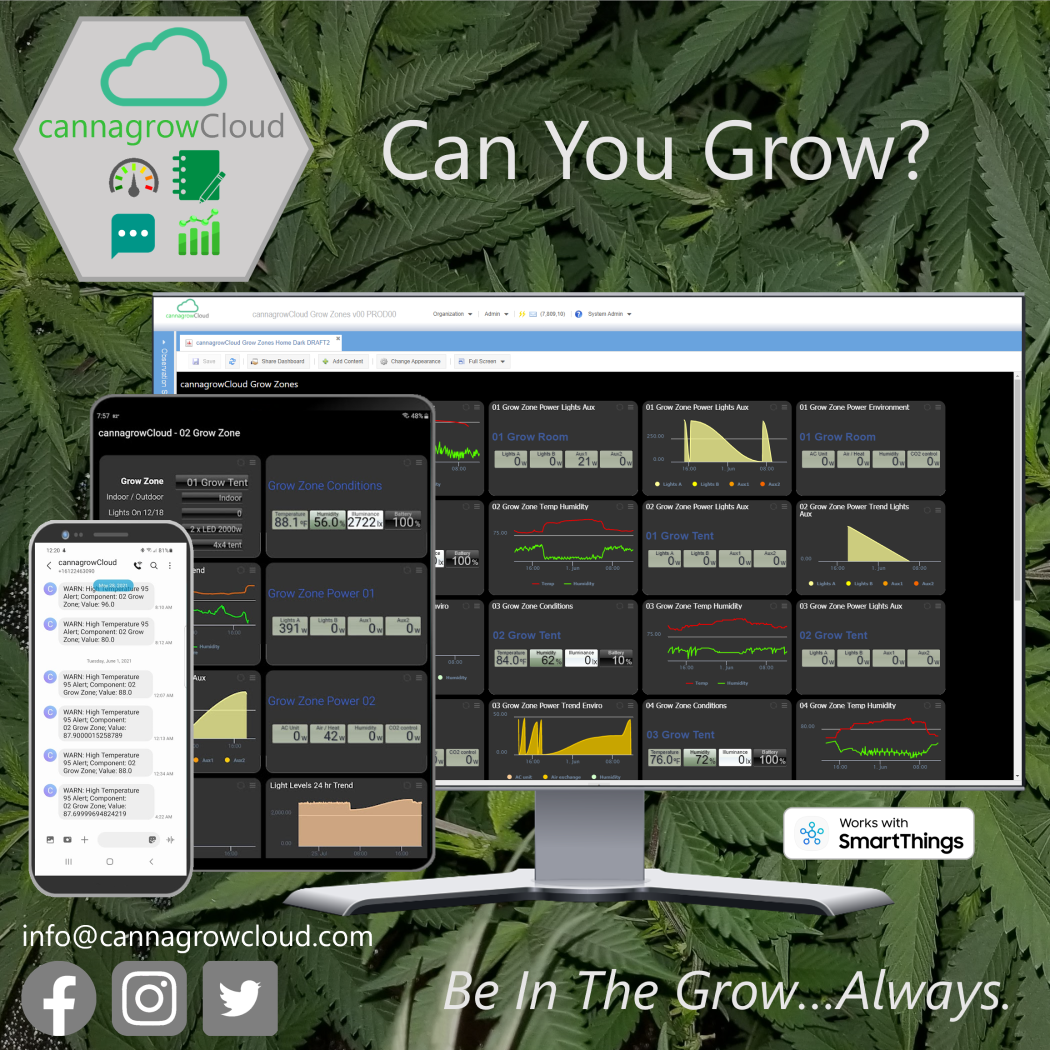
We Build Your System
• We build your custom system and send your encryption key.
• You add the cannagrowCloud SmartLogger SmartApp.
• Start using Grow Zones!
Have a question? Contact us at info@cannagrowcloud.com
Adding the cannagrowCloud Logger SmartApp
To start logging the data coming from your Grow Zone sensors, the cannagrowCloud Logger SmartApp needs to be installed for your Samsung Account and your secret encryption key added.
To install the SmartApp, login to the SmartThings Groovy IDE using your Samsung Account: SmartThings Groovy IDE Login
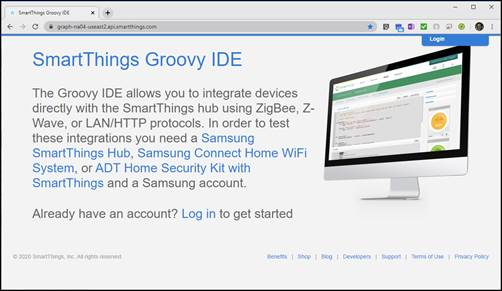
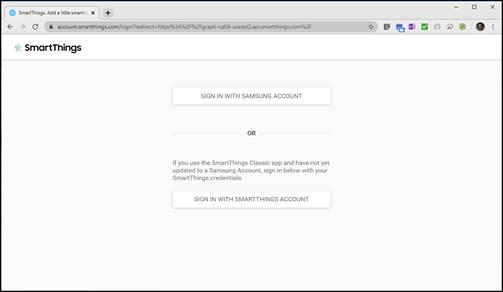
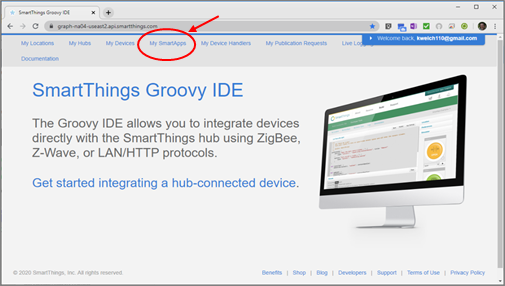
• Login and click on "My SmartApps":
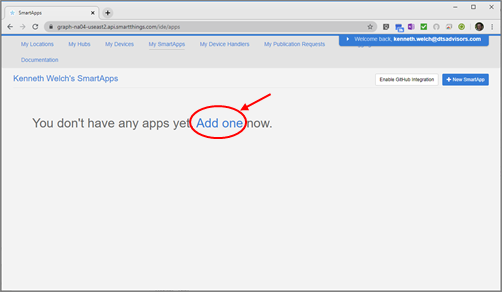
• Click on "Add one now":
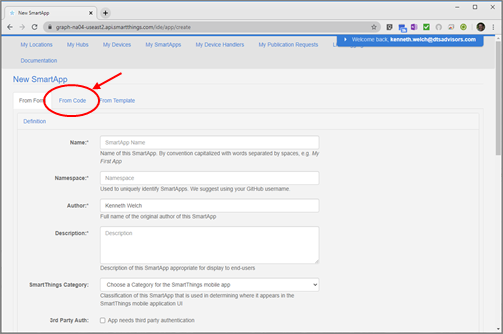
• Next screen click on "From Code":
• Copy and paste the cannagrowCloud Logger app code from your welcome message into the box:
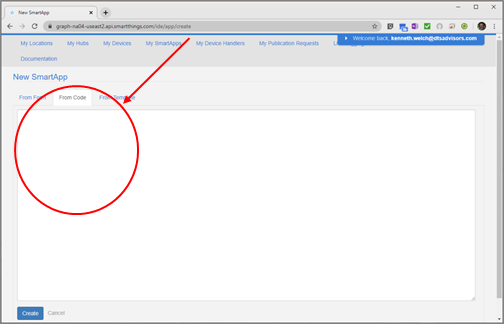
• After pasting the code text into the box click on "Create":
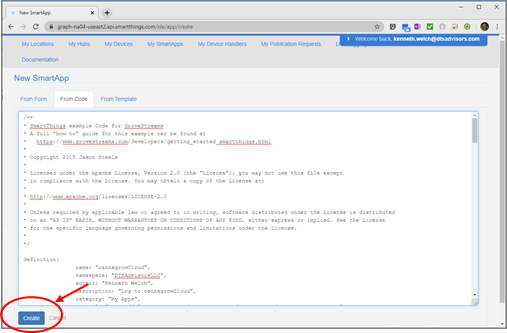
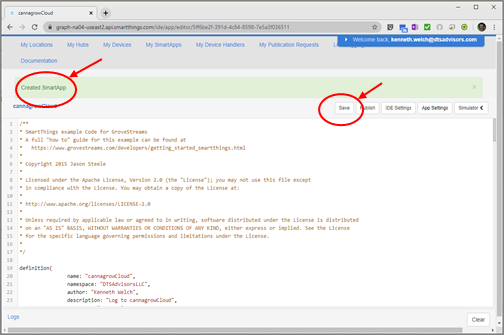
• You should see a message "Created SmartApp". Click on "Save":
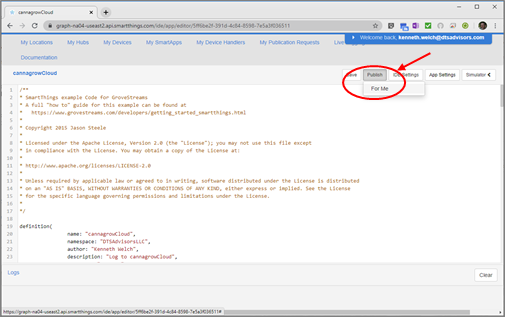
• After you click save, click on "Publish" then "For Me" on this screen:
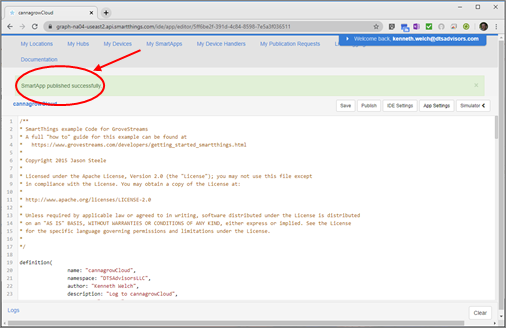
• You should get a screen that says "SmartApp published successfully":
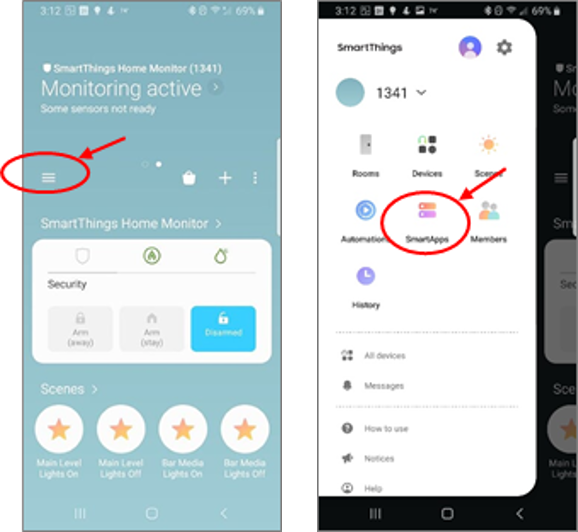
Congratulations, you have now installed the cannagrow Logger SmartApp. One more step to complete: inputting your encryption key into your SmartThings app. On your phone or tablet, open the SmartThings app and click on the three bars on the left, then click on “SmartApps”:
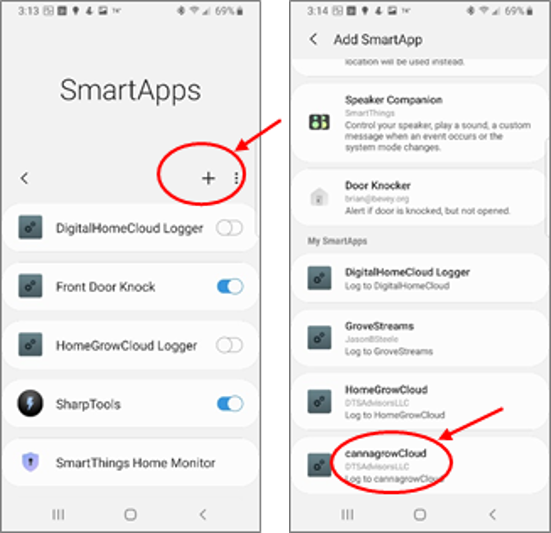
On the next screen click on the “+” sign and then scroll and find the “cannagrowCloud” app under My SmartApps on the Add SmartApp screen:
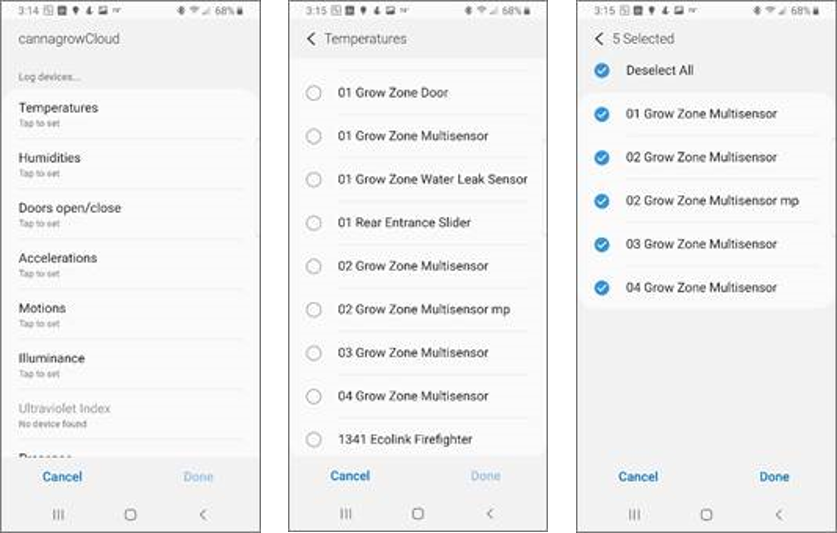
After selecting the cannagrowCloud app you need to tell the app to log data from the sensors by selecting them on the Temperatures, Humidities, Doors open/close, Accelerations, Motions, Illuminance, Switches, Batteries, Power Meters, and Energy Meters.
Enter the encryption key into the field where it says “cannagrowCloud Feed PUT API Key. Be careful entering the key to enter it exactly and with no spaces at beginning or end:
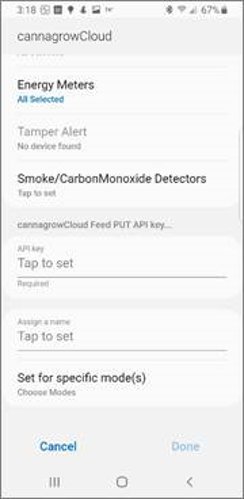
After you click Done to save the settings your sensor data should now start going to cannagrowCloud and you can start using your dashboards!
Be In The Grow...Always.
Questions? Contact us at info@cannagrowcloud.com.



#BeInTheGrow #BeInTheGrowAlways